
When you need AI help with something visible on your screen, a screenshot is often more efficient than trying to describe it in text. Screenshots give the model context it cannot reliably infer from a written summary, including an error’s location, an interface state, a layout issue, a chart’s shape, or the settings currently selected. This approach is commonly called multimodal AI prompting.
Screenshots work best when the relevant details are visible and legible. For high-stakes decisions, confirm important numbers, settings, and filters in the original system rather than relying on the screenshot alone. Dave Pye, CEO of Fast Frigate Digital Marketing in Burlington, Vermont, developed this workflow through hands-on use of ChatGPT and Claude for technical troubleshooting, design feedback, and client documentation. This article shares three practical situations where screenshots can reduce back-and-forth and help resolve visual problems faster.
Can I Use Screenshots With AI Tools?
You’re typing out detailed prompts, trying to explain what you’re seeing on your screen. The layout, the colors, the strange error message in the corner. The AI gives you a generic “duh” answer. And (in my experience) 80% of the time, the UX of whatever you’re looking for help with has eclipsed your favorite LLM’s knowledge base.
It’s a maddening loop. Infuriating. A back-and-forth tango where you’re translating reality. You’re trying to describe a visual problem with words, and the AI is trying to rebuild that picture in its head. You’re losing all the AI convenience in the translation.
I was stuck in that loop for months. Late nights were spent wrestling with ChatGPT or Claude over some new website build. Working on a multi-step article about the mechanics of ad automation. I’d write a novel trying to explain a simple CSS bug.
“I have a flexbox container with three child elements. The third one is overflowing its parent container on mobile viewports under 480 pixels wide. The text is wrapping awkwardly. Can you give me the CSS to fix this?“
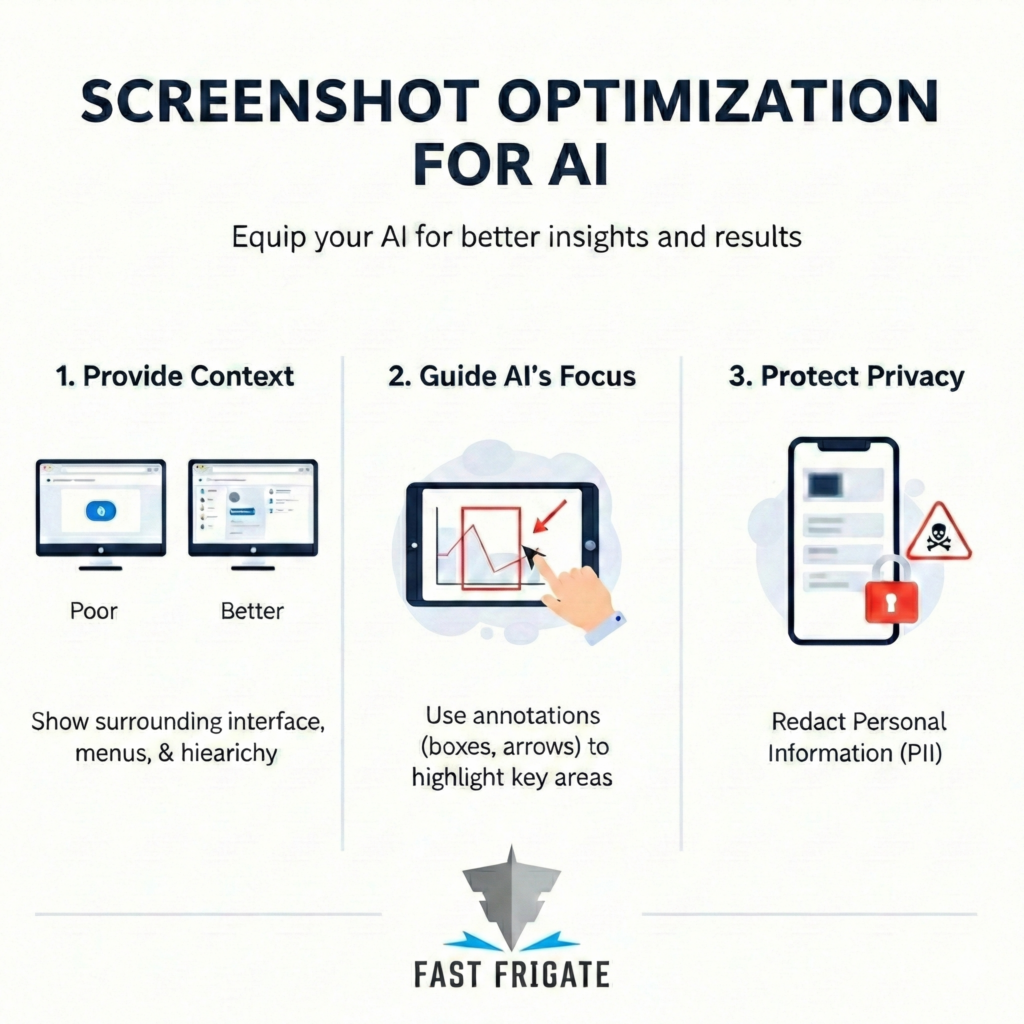
I’d get back a boilerplate answer about flex-wrap. Useless. Then, out of sheer desperation one night, I just stopped typing. And I may have been ever-so-slightly (definitely) frustrated. I took a screenshot of the broken layout, circled the problem, and uploaded it. My prompt was five words: “Fix this alignment issue here.”
The response I got back wasn’t generic. It was exact. It referenced the specific class names it could see in the developer tools. It identified the flexbox issue and a line-height problem I hadn’t even noticed – It saw what I saw. Everything clicked.
The problem isn’t that the AI is dumb. The problem is that we’re feeding it second-hand information. Like the schoolyard telephone game. Once you start sharing your screen shots, things change.
The Problem With Just Using Text
For a huge number of tasks, text is a terrible medium for describing problems. The moment your task involves a user interface, a design, or a data chart, words fail. We all do it. You’re looking at your Google Analytics dashboard. You see a weird spike in traffic on Tuesday. You want the AI to help you figure out why. So you start typing:
“My website traffic usually sits around 1,000 users. It jumped to 5,000 on Tuesday but fell back to 800 on Wednesday. What could have caused this?”
It’s a decent prompt, but it’s full of holes. The AI has to guess and make its own assumptive connections. What did the graph actually look like? Was it a single sharp spike or a plateau? It will give you a list of generic possibilities like bot attacks or ad campaigns. It’s guessing because you forced it to. You gave it a summary, not the source data.
Now, take a screenshot of the analytics graph and ask, “Explain this spike and drop. What are three likely causes?” The AI can often read the story the chart is telling: the shape of the spike, the axes, the labels, and the numbers that are actually visible. But it cannot see a hidden filter, a cropped data point, or the source data behind the graph. For decisions that matter, check the original analytics view before you act.
Where This Actually Works
I first had this realization while debugging an issue with a new JavaScript framework. The official documentation was already out of date. The AI kept suggesting I click on menus that no longer existed. This is my biggest AI “bugaboo”. Again, outdated UX info that exponentially increases prompt iterations. The moment I sent a screenshot of the actual UI, a light switch flipped. “Ah, I see you’re using the new interface,” it said. It pointed me to the right tab immediately. Problem solved in two minutes.
I’ve found a few areas where this method is simply the best way to work:
1. Technical Troubleshooting
Don’t copy and paste one line from your terminal. That’s like sending a detective a single bullet casing without any crime scene photos. Screenshot the whole window instead. The AI needs to see the commands you ran before the error and the file structure in the sidebar.
I was recently stuck on a failing build process. I pasted the error into Claude, and it gave me generic advice. Then I tried again. I took a full-screen screenshot showing the terminal, the package file, and my folder structure. The AI saw a version mismatch between two dependencies that had nothing to do with the final error message. I never would have found that by just pasting the error text.
2. Design and UX Feedback
This is fundamentally better for marketers and product people. Stop trying to describe your landing page. Show it. Take a screenshot of your hero section and ask for headline variations based on the imagery. Or show your pricing page and ask if the value proposition is clear. The AI can analyze visual hierarchy and color contrast. It can see your call-to-action button is a dull gray and buried at the bottom. It gives you concrete suggestions instead of abstract guesses.
3. Generating Manuals and Walkthroughs
Writing “how-to” guides is a tedious task. Now, I just run through it once manually and take a series of screenshots as I go.
- Screenshot of a client dashboard login screen with (obfuscated) credentials visible.
- Screenshot of the account settings panel where they need to update their business information.
- Screenshot of the confirmation page showing their profile is complete.
I upload them and ask the AI to write a step-by-step guide for everyone else. Done. You get a perfectly formatted document in seconds. It saves an unbelievable amount of time.
What to Check Before You Upload a Screenshot
A screenshot is evidence, not the whole situation. A model can work only from what is visible, so a cropped chart, hidden filter, unreadable label, missing hover state, or absent tab can change the answer. For an important decision, use the image to narrow the question, then verify the result in the original tool.
Treat screenshots as business data. Before uploading, redact client names, email addresses, account IDs, API keys, financial information, credentials, and any customer details that are not needed for the question. In a client, regulated, or otherwise sensitive environment, use an AI workspace approved for that kind of data and check its current data controls before you upload.
Screen Shot Sanctum
When you only use text, you and the AI are operating in two separate realities. Your reality is the tangible world on your monitor. The AI’s reality is just the stream of characters you sent. A screenshot obliterates that gap.
Instantly, you’re both looking at the same pixels. An error code isn’t just text; it’s a red box located at a specific point in a process. By showing instead of telling, you stop translating. The AI stops guessing and starts actually analyzing.
There is no inefficient ambiguity.
It’s really simple. But most people aren’t doing it yet. We’re so used to text-in and text-out that we forget how well these tools can see. So stop typing the Winds of War. Take a screenshot. Circle the problem. You’ll never go back.
